Connect your Instagram account to Embedra, pick a look, and paste one line of code into your website builder. The line is the same on every platform, and the feed updates by itself after that. You need an Instagram professional account, Business or Creator, and no Facebook Page.
Four steps, and only the last one changes from platform to platform.
Every option on the feed page →Log in on Instagram's own page and click Allow. Embedra asks for one read-only permission and never sees your password.
Grid, Carousel, Masonry, Marquee, Dual marquee or Profile Card, in your colours.
Click the Embed pill, then Copy code. The one line already carries your widget's ID.
Where the feed should appear. Your platform's steps are below.
Your Instagram account must be a professional one, Business or Creator: Instagram's API for websites does not work with personal accounts. No Facebook Page is needed.
Every builder has a box for code. This is its name on each one. Pick yours and jump to the steps.
All install guides →Try the controls below: switch the layout, the columns, the shape and the theme. This is the real feed from Embedra's own Instagram account.
Use a Custom HTML block. No plugin needed.
The full WordPress guide →Open the page, click the blue + at the top left, type html and click Custom HTML.
Click Edit HTML, paste your code into the HTML tab (not the JavaScript tab) and click Update.
Click Save at the top right, or Publish if the page is new.
If the feed only shows when you are logged in, clear the cache. If it appears late, add embedra to the plugin's Delay JavaScript exclusions.
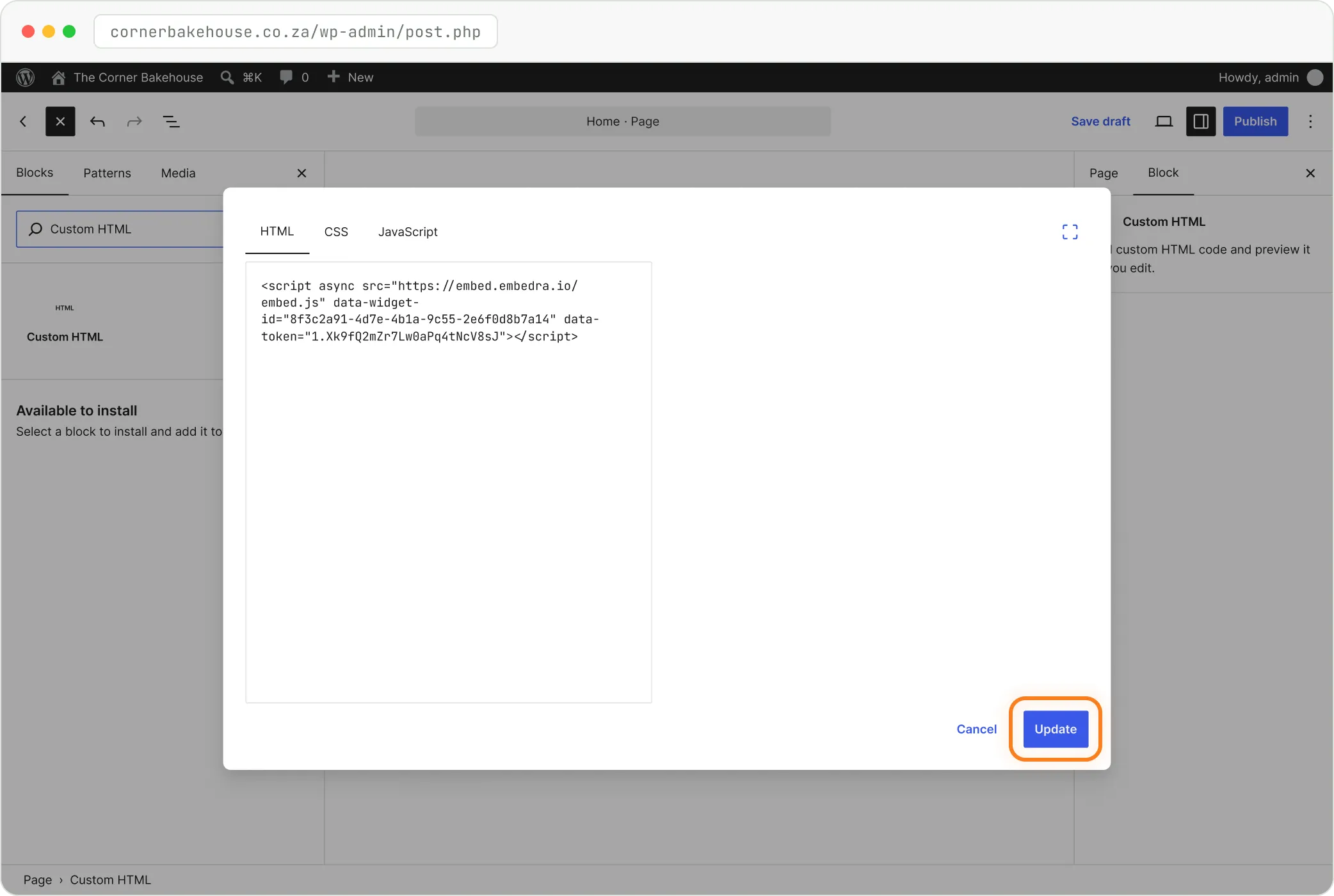
WordPress's own block takes the line of code as it is, so there is no Instagram plugin to install or keep updated. Only Administrators and Editors may save code, so log in as one. On older WordPress (6.x), paste straight into the box on the block.
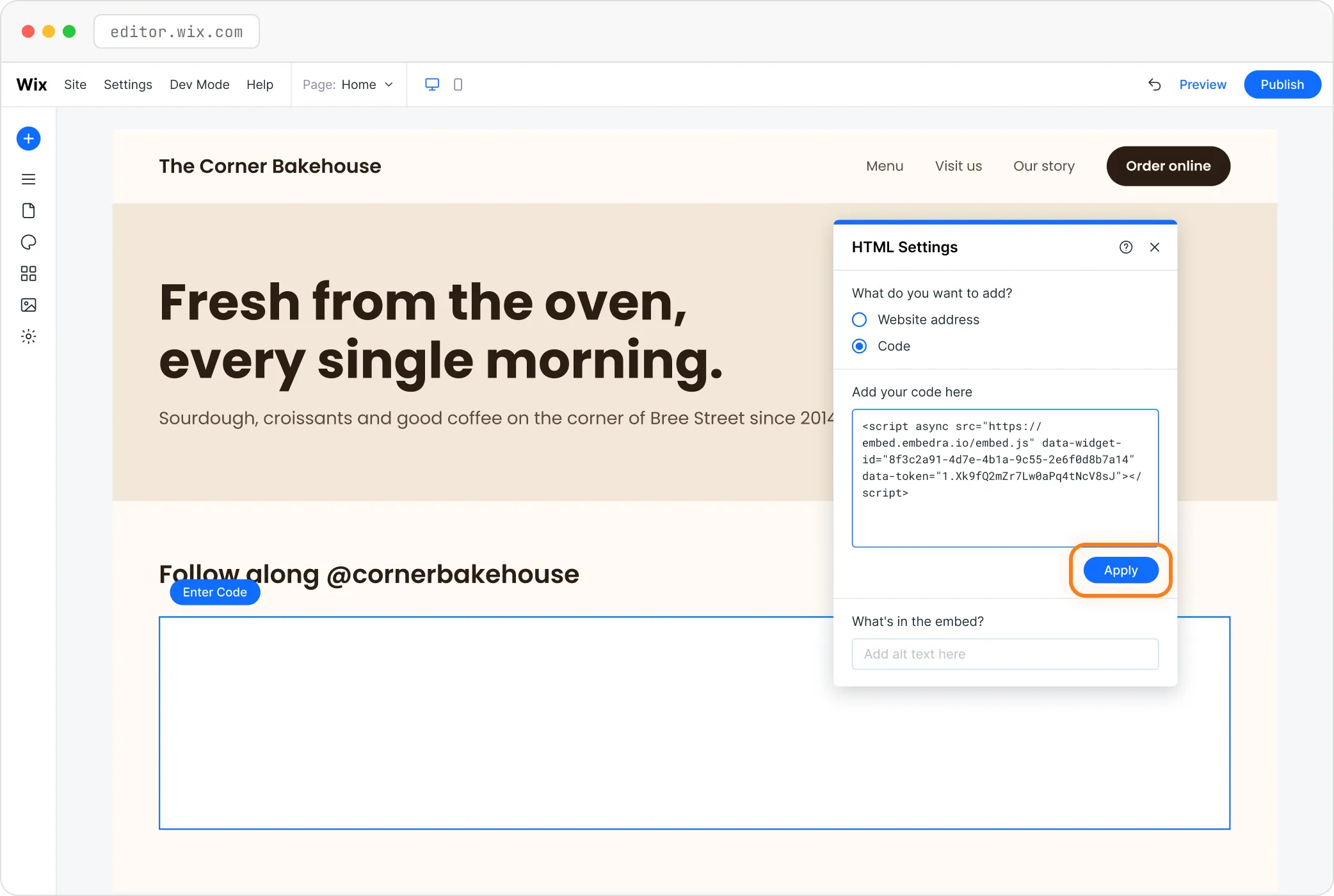
Use Embed HTML, and leave Allowed domains empty.
The full Wix guide →In the Wix Editor, click Add Elements, then Embed Code, then Embed HTML.
Click Enter Code, choose Code (not Website address), paste your code and click Apply.
Drag the box taller until the whole feed fits, then Publish.

Wix runs Embed HTML inside its own frame, on a Wix address rather than your domain, so a widget locked to your domain is turned away there. In Wix Studio the same box is under Add Elements, Embed & Social.
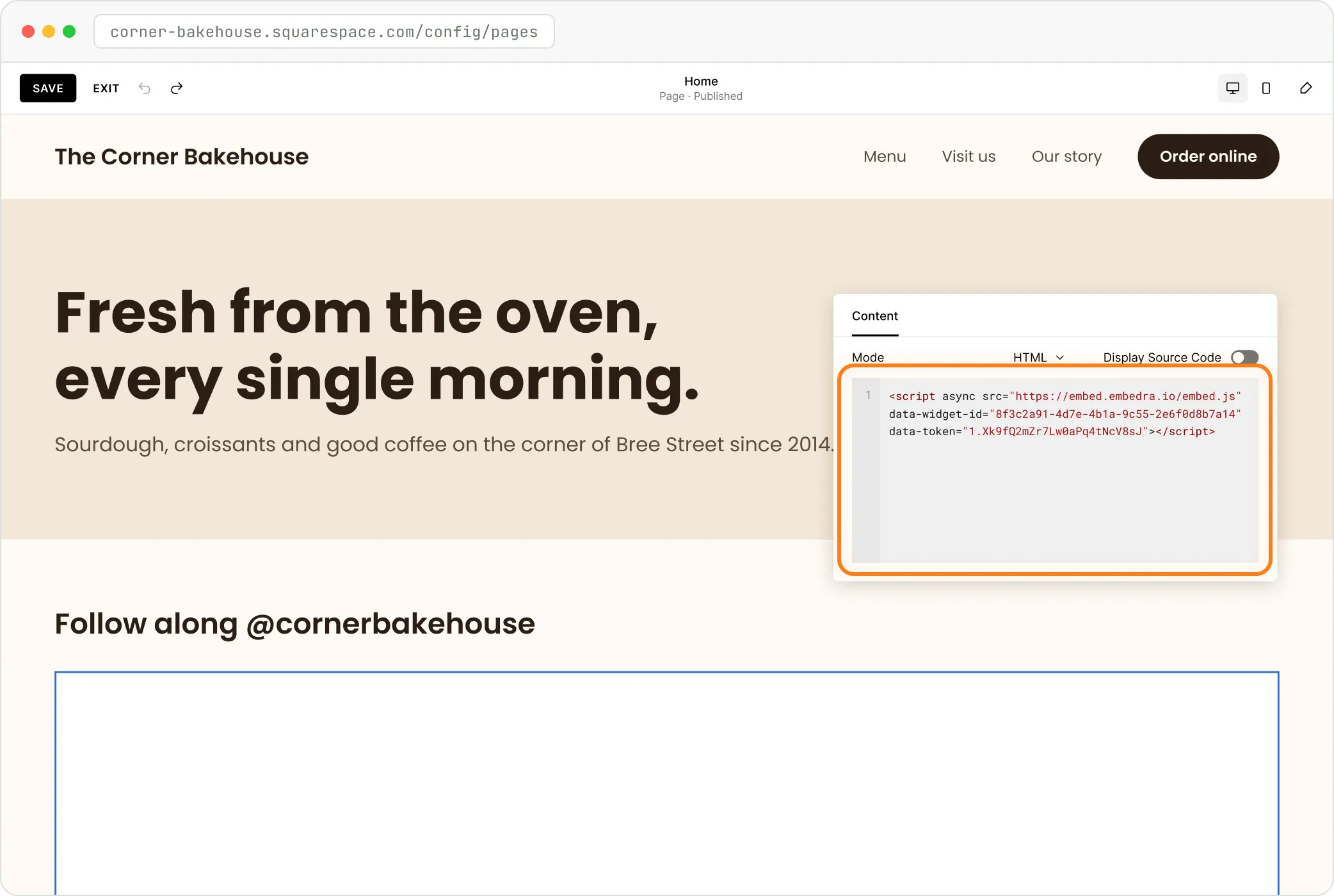
Open the page, click Edit, then Add Block, and choose Code.
Click the pencil on the block, keep Mode on HTML, leave Display Source Code off and paste. Click Save, then Exit.
Open your live page in a private window to see the feed.

Code blocks need a Core, Plus or Advanced plan, and also work on Business and Commerce plans. While you are logged in, Squarespace shows EMBEDDED SCRIPTS in place of the feed. That is normal.
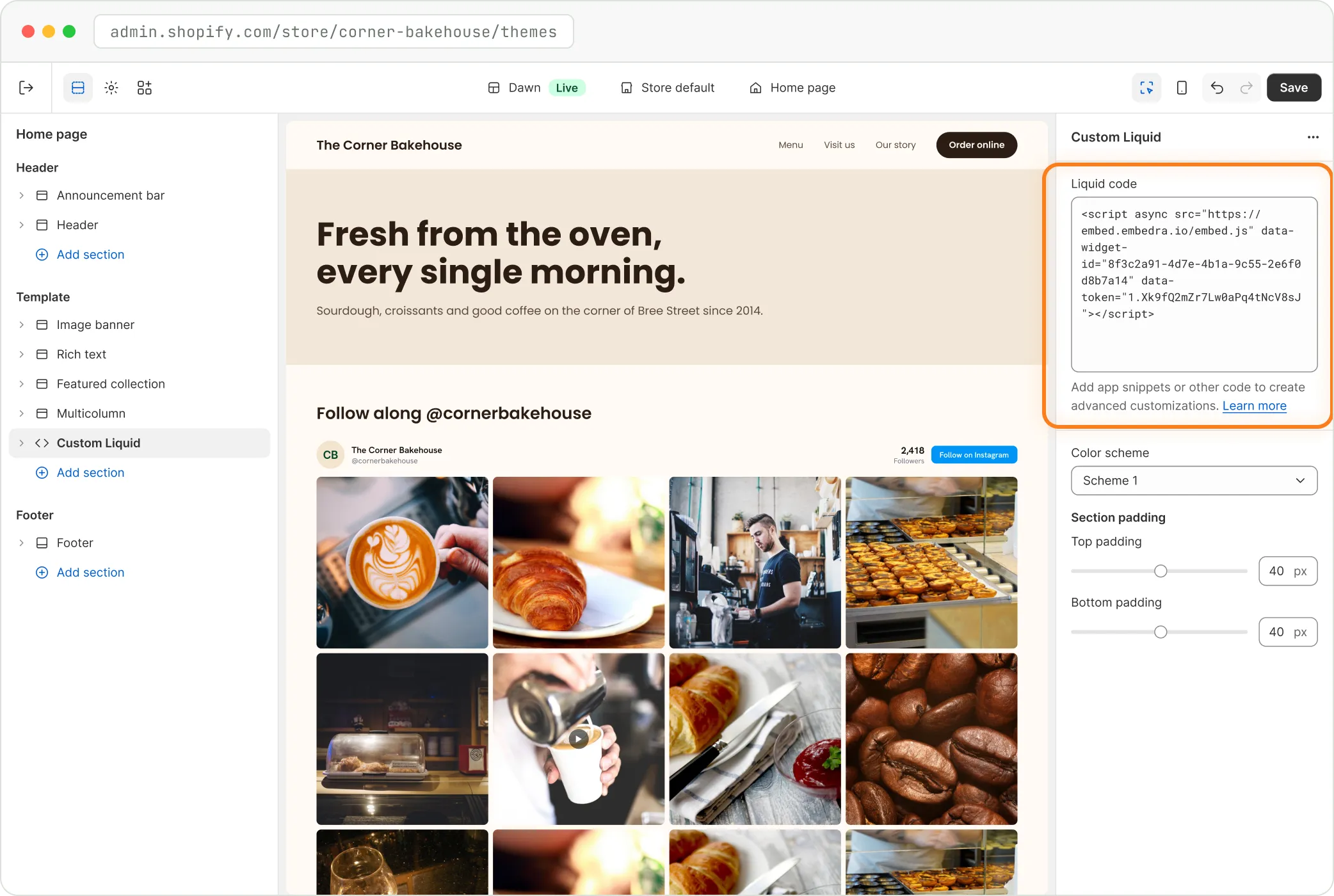
Use a Custom Liquid section in the theme editor.
The full Shopify guide →In Shopify admin, open Online Store and click Edit theme. Pick the page from the menu at the top.
Under Template, click Add section, search Custom Liquid and click it.
Paste your code into the Liquid code box and click Save.

The section appears on every page that uses the same template, such as every product page. For one page only, make a separate template first. If the feed looks squeezed, drag the section out so it is a full-width section of its own.
Open the page in the Designer, click + on the left (or press A) and, under Advanced, drag Code Embed onto the page.
Paste your code into the Code Embed Editor and click Save & Close.
Click Publish at the top right. If the feed looks cut off, set the block around it to Auto height.

Webflow never runs code inside the Designer, so you see a grey box there. Publish, then open your live site or your .webflow.io address to see the feed.
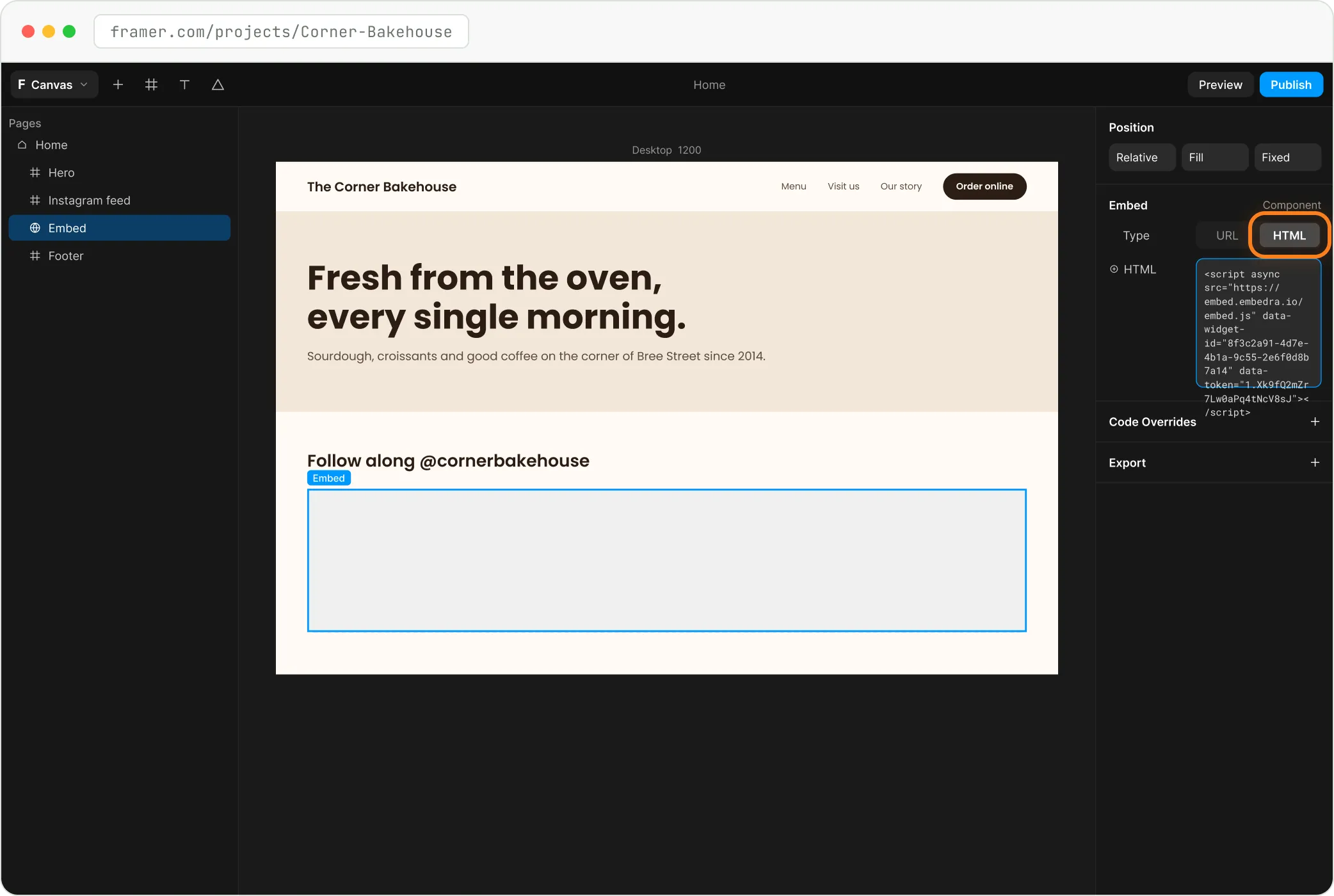
Click + (Insert) at the top left, open Utility and drag Embed onto the page.
Under Embed on the right, switch Type from URL to HTML and paste your code.
Set the width to Fill and give it enough height that no scrollbar shows, then Publish.

Framer only runs code on the published site, not in the editor, so publish before you check it.
Use Insert, Embed, then Embed code, and leave Allowed domains empty.
See the live feed →Open your site in Google Sites. On the right, click Insert, then Embed.
Click Embed code, paste your code, click Next, then Insert.
Make the box tall enough for the whole feed, then click Publish at the top right.
Google Sites runs your code inside its own frame, on a Google address rather than your domain, so a widget locked to your domain is turned away there. Make the box tall enough for the whole feed.
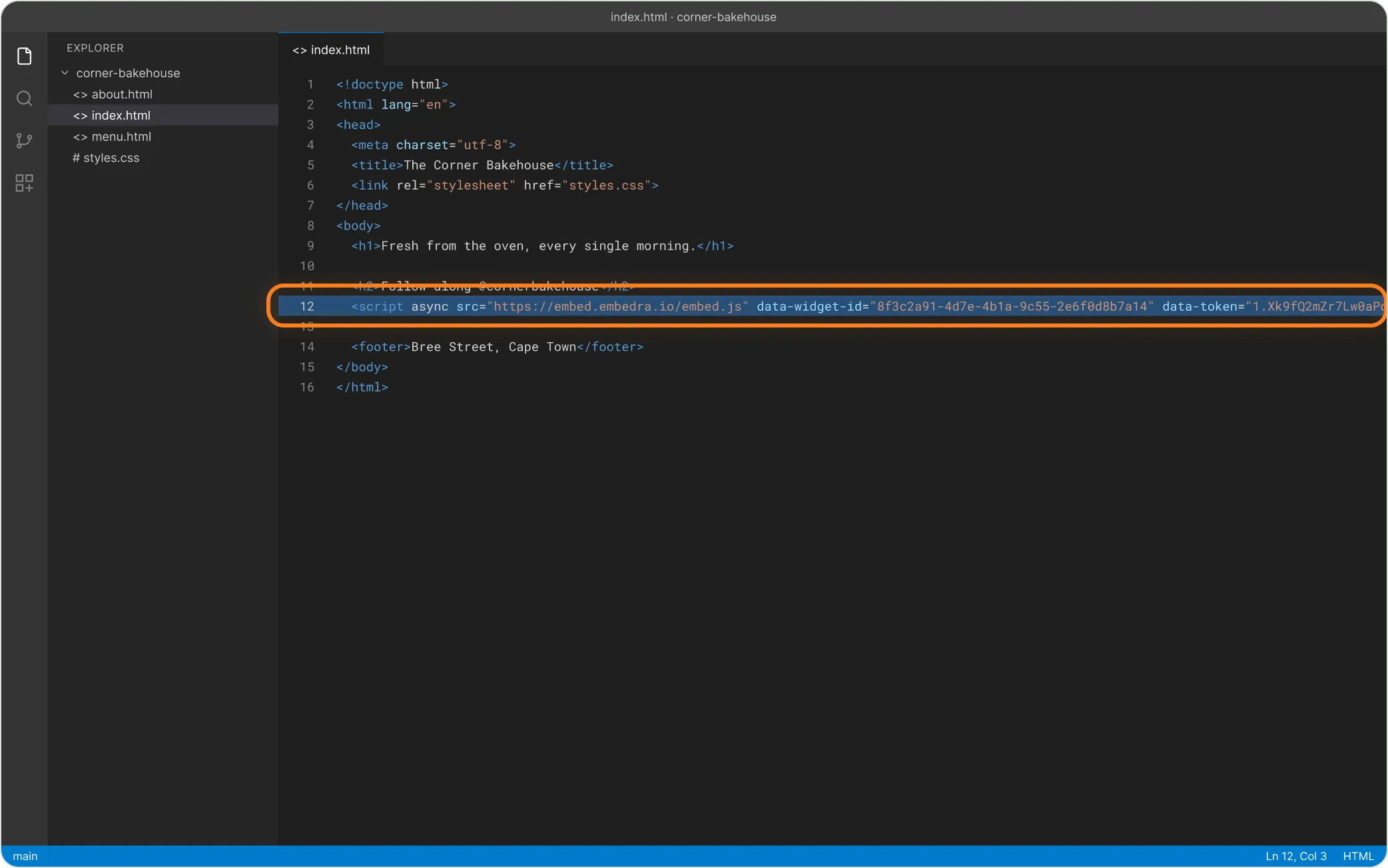
Paste the one line inside <body>, where the feed should appear.
The full HTML guide →In Embedra, open your widget, click the Embed pill, then Copy code.
Open the page file and paste the line where the feed should show. Save and upload.
Check it on your live website. A file opened straight from your computer does not run it.

The line is a single script tag. The feed draws itself in that spot inside its own Shadow DOM, so your site's CSS cannot break it. If your site sets a Content Security Policy, it has to allow embed.embedra.io.
Straight answers, so you know exactly what the feed covers.
Show your latest posts, with a header and a Follow on Instagram button.
Open posts in a lightbox on your site, with the caption, likes and comments.
Keep itself current: daily on Free, up to every 5 minutes on Business.
Load nothing from Instagram in your visitors' browsers, and set no cookies.
It does not play reels or videos on your site. They show their cover, with View on Instagram to watch.
It does not show more than your 12 latest posts, or swipe through a carousel post. A carousel shows its first picture.
It does not work with a personal Instagram account. Instagram's API for websites needs a Business or Creator account.
Every plan includes the Instagram feed. It counts a view each time it loads, and a visitor counts once every 30 minutes.
Most popular
75,000 monthly views
Any 10 widgets
Unlimited domains
Custom CSS / JS
5 projects
No badge
Connect your Instagram account to Embedra, pick a look, copy one line of code and paste it into your website builder where the feed should appear. It updates by itself after that.
Yes. Paste the line into WordPress's own Custom HTML block. There is no plugin to install or keep updated.
No. Instagram's API for websites works with professional accounts, Business or Creator, and needs no Facebook Page.
Reels and videos show their cover with a play badge, and open on Instagram to play. Embedra keeps a copy of your photos, not of video files.
Daily on Free, every 6 hours on Starter, hourly on Pro and every 5 minutes on Business. If Instagram is down, your last good posts stay on show.
The Free plan covers one widget and 500 views a month, with a small Powered by Embedra badge.